The Equipment page is a core module in MapleToolkits. Its primary purpose is to collect your character’s current equipment configurations and their corresponding enhancement states (such as Starforce, Potential ranks/lines, and Flame stats). The configurations defined here are utilized directly in the Enhancement module for simulating Starforce, Potential, and Flame upgrades.
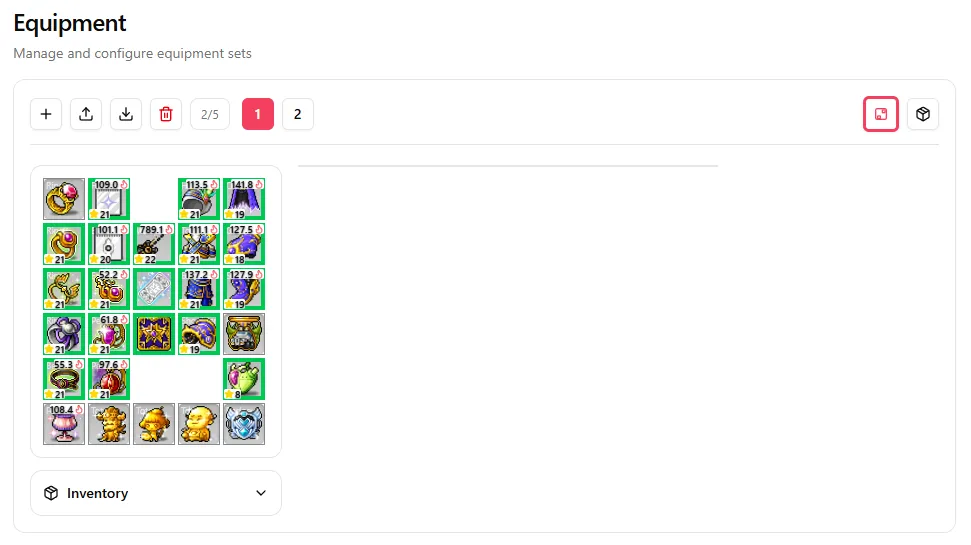
1. Action Area
Located at the top of the interface, the action area contains controls for managing your equipment sets and display modes:
- Equipment Sets Management (Left Side):
- Add (+), Import/Export, and Delete (Trash) equipment sets.
- You can save and switch between up to 5 different equipment sets to test different build combinations.
- Display Controls (Right Side):
- Show Enhancements: When enabled, the equipment slots dynamically overlay enhancement information:
- Potential Rank: The slot’s outer border is highlighted with the color matching the gear’s potential rank (e.g., Rare, Epic, Unique, Legendary).
- Starforce Level: Displayed in the bottom-left corner of the slot.
- Flame Score: Displayed in the top-right corner of the slot.
- Show Equip Set: Clicking this button triggers a popup modal showing all active set effects (e.g., Superior Gollux, Arcane Umbra) currently triggered by the gears in the calculated equipment area.
- Show Enhancements: When enabled, the equipment slots dynamically overlay enhancement information:
2. Equipment Area
The Equipment Area is divided into three sections:
2.1 Calculated Equipment Area (Top-Left)
This grid represents the equipment currently equipped for simulation. All gear placed here is used directly in Enhancement simulations.
-
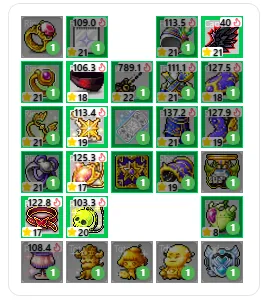
Set 1 Fallback & Quick Copy: When configuring a set other than Set 1 (e.g., Set 2), any empty slot will automatically display a preview/shadow icon of the equipment occupying the corresponding slot in Set 1. This allows for quick referencing and copying without manual reconstruction.
-
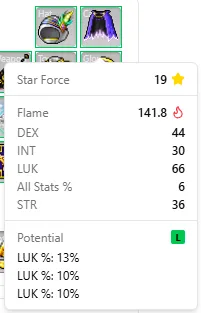
Slot Tooltip: Hovering your mouse over any slot containing equipment information displays a floating tooltip with the gear’s detailed enhancement stats, including its Star Force level, detailed Flame stats, and Potential ranks/lines.
2.2 Inventory (Bottom-Left)
The Inventory holds backup or alternative equipment that is not included in the active enhancement calculations.
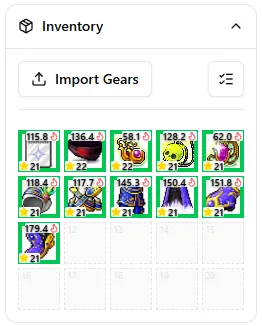
A. Inventory Action Bar
This bar contains tools for importing and managing your inventory equipment:
-

Import Gears (Left Side): Import equipment screenshots or quickly snap screenshots via window sharing.
-
Capacity Constraint: You can import or screenshot up to the number of remaining empty slots in your Inventory.
-
Gear OCR: Click Gear OCR after loading screenshots to perform optical character recognition. The system automatically parses and extracts critical equipment data—such as item name, star force level, base stats, scroll stats, flame stats, potential rank, and potential lines—to populate empty inventory slots with the recognized items.
-
OCR Accuracy Tips:
Click to expand OCR pre-setup and capture details
I. Pre-setup Settings
-
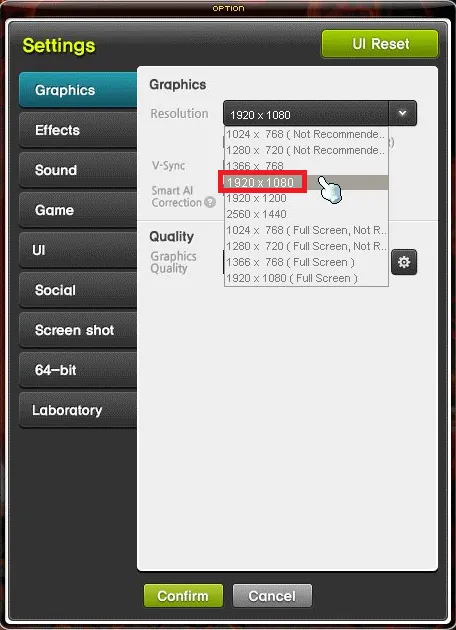
UI Size & Resolution: Set your game options as follows.
UI Size: Ideal Ratio Resolution: 1920x1080 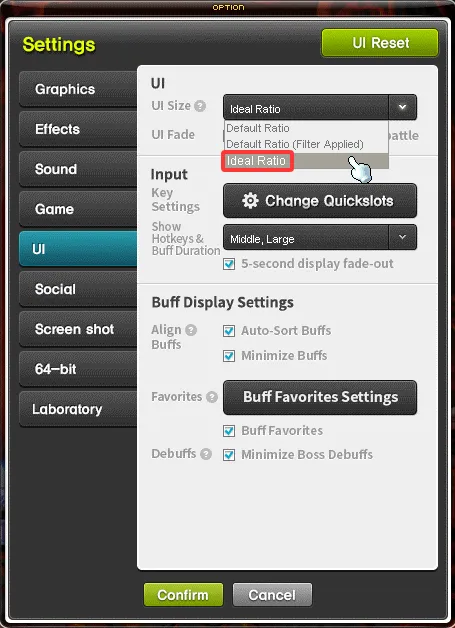
-
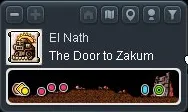
Location: Position your character at ‘The Door to Zakum’ (accessible via Boss Contents -> Zakum -> Move to Boss).
Move to Boss The Door to Zakum 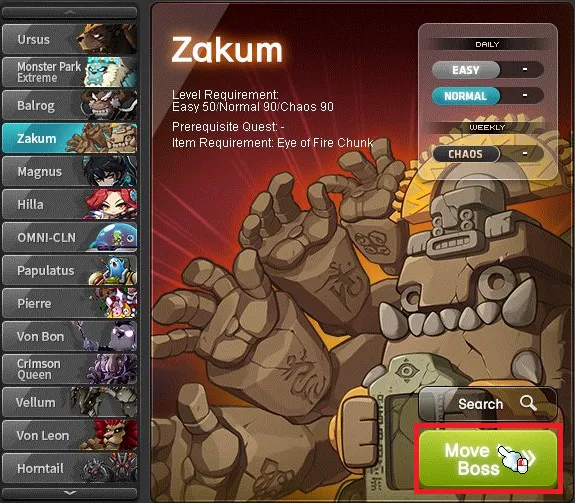
-
Screenshot Sample: Place the Equipment Inventory in the top-left corner of the screen, with its border aligned against the top and left edges. Otherwise, at the very least, ensure the cursor is positioned to the left of the tooltip.
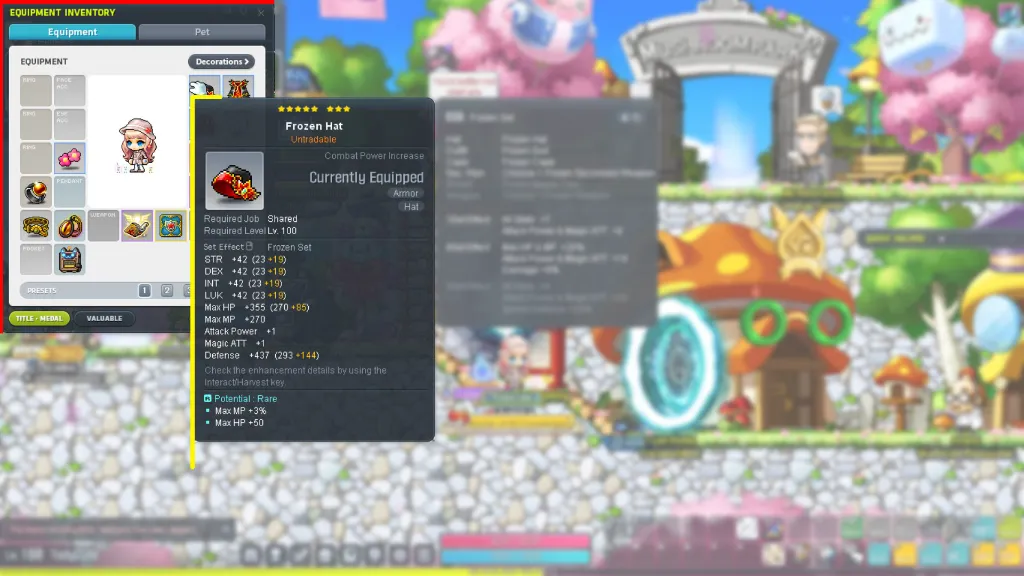
II. Quick Capture Details
- Once you have shared the game window, return to the tool page.
- Hover your mouse over the equipment inside the game window to display the tooltip (move the cursor only, do not click).
- Press Space or Enter to capture the current frame.
-
-
-
Multi-Select Mode (Right Side): Toggle multi-select to batch remove multiple items from the inventory at once.
B. Drag-and-Drop / Swapping Rules

- Calculated Area vs. Inventory: Equipment can be freely dragged between the Calculated Equipment Area and the Inventory.
- Calculated to Inventory: Moving gear from the calculated area to an empty inventory slot has no restrictions.
- Swapping: When swapping equipment, you can only swap items of the same type.
- Inventory to Calculated: When dragging from the Inventory to an empty slot in the Calculated Area, the item type must match the target slot (e.g., Ring to Ring slot), and any non-duplicable/unique wearing constraints must be met.
2.3 Equipment Details Panel (Right Side)
-
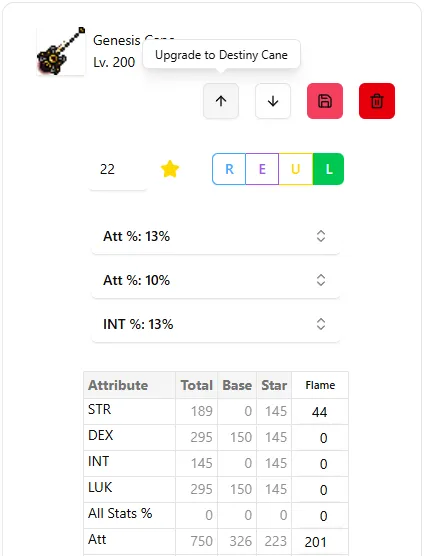
Clicking any gear slot in the calculated area or inventory displays its complete attributes on the right side.
-
In this panel, you can modify the equipment’s current enhancement status, including Starforce level, Flame values, and Potential lines.
-
Quick Version Swap (Upgrade / Downgrade / Swap): For specific qualifying equipment types (such as upgrading/downgrading a Genesis Weapon or swapping a Guardian Angel Ring between its standard and Dawn Set versions), quick action buttons (represented by up/down arrows or swap icons) are provided next to the item name. This allows you to toggle different gear tiers/versions instantly without needing to re-configure the item slots.
Access the Live Tool
👉 Access the Live Equipment Dashboard
Guide details, assumptions, and verification
Supported scope: MapleStory Global-style equipment data. Last reviewed: July 20, 2026. This guide documents an independently developed tool and is not official MapleStory guidance.
Method: The Equipment module uses the item, enhancement, and set-effect details entered by the player as inputs for other MapleToolkits modules. OCR is an import aid only; manually verify every parsed line before saving it.
Worked example: Import a ring screenshot, check its detected star count, potential, and flame against the in-game tooltip, then place it in the calculated area. Compare it with a second ring only after both items have complete values; an omitted potential line makes the later enhancement comparison unreliable.
Troubleshooting: If OCR returns an incorrect field, use manual editing instead of forcing the import. Screenshots containing overlays, a cropped tooltip, or an unsupported resolution can reduce recognition accuracy.
Sources and updates: Check official MapleStory notices for item-system changes. Update history: July 20, 2026 — added verification workflow and limitations.