The Familiar Expedition page is a Mystic Frontier planning tool in MapleToolkits. It helps you estimate expedition scores from familiar options, expedition bonuses, and dice faces, then search for strong three-card lineups from your saved Mystic Familiar Cards.
This tool is most useful after you have configured your cards and presets on the Familiar page, since the matching workflow can reuse that saved data directly.
1. Dices Calculator
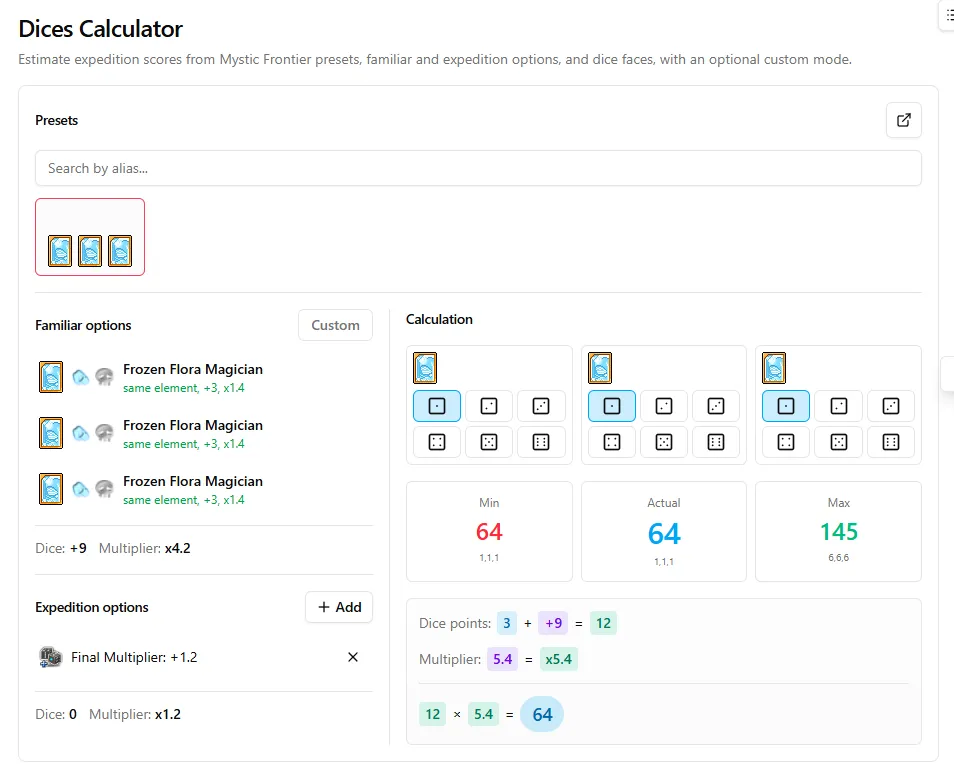
The Dices Calculator section estimates expedition scores from the current familiar and expedition settings.
Presets
The presets area lets you load saved Mystic Frontier lineups from the Familiar page. You can search by alias to quickly locate the lineup you want to test.
When a preset is selected, the calculator can display the familiar cards, their matching element or type information, and the bonuses that participate in the score calculation.
Familiar Options
The familiar options area represents the cards and familiar bonuses used in the calculation.
You can use saved presets or switch into Custom mode when you want to test a specific scenario manually. Custom mode is useful for checking a possible lineup before saving it as a long-term preset.
Dice Faces
Each familiar card contributes dice faces to the calculation. The interface provides face buttons for configuring the visible dice values.
The calculator then evaluates the possible result range:
- Min: The lowest score from the configured dice faces.
- Actual: The current score from the selected face values.
- Max: The highest score from the configured dice faces.
Expedition Options
The expedition options area lets you add expedition-specific bonuses. These options can contribute additional dice values and multipliers, which are then included in the final score.
The calculation summary shows the formula in a readable way, including:
- Dice points from selected faces.
- Extra dice values from familiar or expedition options.
- Final multiplier values.
- Final score after multiplication.
2. Match Cards
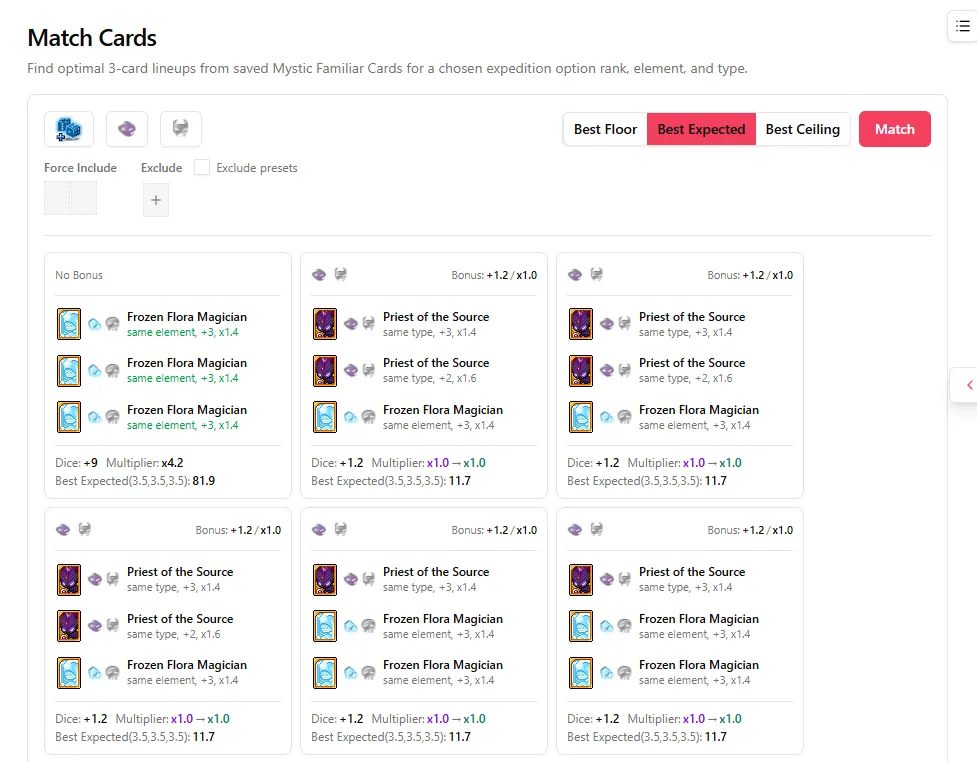
The Match Cards section finds optimal three-card lineups from your saved Mystic Familiar Cards.
Matching Conditions
Rank, Element, and Type work together as one optional bonus condition. When you use this condition, all three fields must be selected at the same time. If you do not want to apply this bonus condition, leave all three fields empty.
When the condition is selected, the matcher checks the three-card lineup as a whole. The selected element and selected type do not need to appear on the same card: one card can satisfy the element condition while another card satisfies the type condition. If the lineup contains both the selected element and selected type, the option from the selected rank is added as a bonus during score calculation.
This bonus can improve a lineup, but it does not guarantee the highest final score. A different three-card combination with stronger base options may still score higher even if it does not match the selected element and type condition.
Force Include
Use Force Include when one or more cards must appear in the result.
This is helpful when you already know a card is locked into your plan, or when you want to compare the best possible lineup around a specific high-value card.
Exclude
Use Exclude to remove cards or presets from consideration.
The tool supports excluding individual cards and excluding saved presets, which is useful when some cards are unavailable, reserved for another lineup, or simply not worth considering in the current plan.
Optimization Modes
The matcher provides multiple priorities:
- Best Floor: Prioritizes the strongest minimum result.
- Best Expected: Prioritizes the best average-style outcome.
- Best Ceiling: Prioritizes the strongest maximum result.
After choosing the preferred priority, click Match to search for the best available lineup.
3. Recommended Workflow
For the smoothest planning experience:
- Open the Familiar page and save your Mystic Familiar Cards.
- Create any reusable three-card presets you already know you want to keep.
- Open Familiar Expedition and use Dices Calculator to inspect score ranges.
- Use Match Cards to search for better combinations under specific expedition requirements.
- Adjust your saved card library whenever your in-game familiar collection changes.
This workflow turns Mystic Frontier planning into a repeatable process: record your cards once, test the score math, then optimize lineups as your collection grows.
Access the Live Tool
Ready to plan your Mystic Frontier runs?
Access the Live Familiar Expedition Dashboard